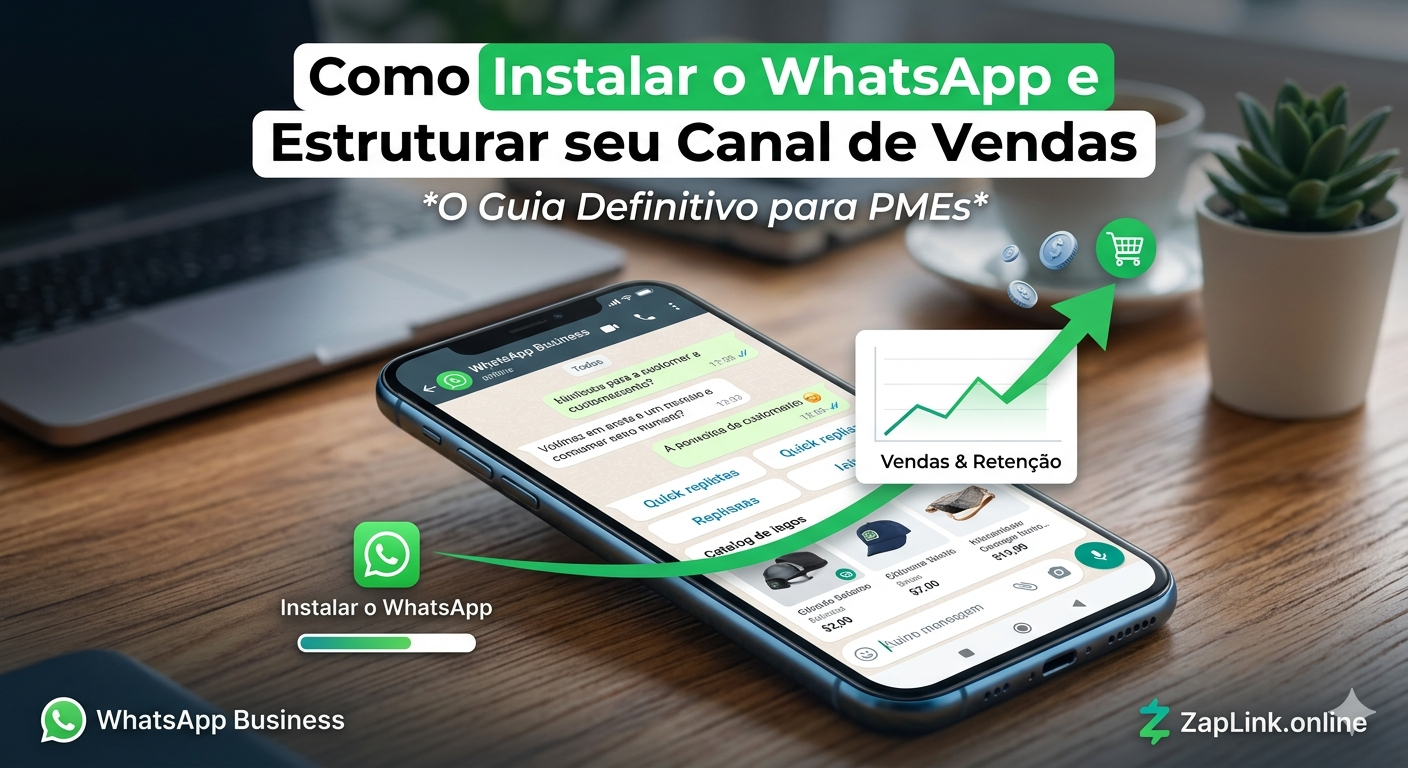
Have you ever wanted to share your WhatsApp number with friends, customers, or followers without them having to save your contact first? Maybe you run a small business, create content online, or just want an easier way for people to reach you. Good news – there's a super simple solution called a WhatsApp link!
A WhatsApp link is basically a special web address that opens a chat with you the moment someone clicks it. Think of it like a shortcut that takes people straight to your messages. Pretty cool, right?
In this guide, I'll walk you through exactly how to create your own WhatsApp link, share some real examples I've used myself, and give you tips to make the most of it. Whether you're tech-savvy or just getting started, you'll have your link ready in about 5 minutes.
What Exactly Is a WhatsApp Link?
Before we jump into creating one, let me explain what we're dealing with here. A WhatsApp link (also called a \"click to chat\" link) is a URL that automatically opens WhatsApp and starts a conversation with your number. The person clicking doesn't need to save your contact information first – they just click and start typing.
These links work on smartphones, tablets, and computers. When someone clicks your link on their phone, the WhatsApp app opens up. If they're on a computer, WhatsApp Web opens instead. Either way, they land directly in a chat window with you.
Businesses use these links on their websites, social media profiles, and email signatures. Content creators add them to their YouTube descriptions and Instagram bios. Even regular people use them to make it easier for others to get in touch. I personally started using one when I was organizing a community event, and it made communication so much smoother.
The Basic WhatsApp Link Format
Here's where things get interesting. Every WhatsApp link follows the same basic pattern. Once you understand this format, you can create links for any phone number in seconds.
The standard format looks like this: https://wa.me/YOURNUMBER
That's it! You just replace \"YOURNUMBER\" with your actual phone number. But there's one important catch – you need to use your number in international format without any extra characters.
How to Format Your Phone Number Correctly
This part trips up a lot of people at first, but it's actually pretty straightforward. International format means you include your country code and remove everything else – no parentheses, no dashes, no spaces, and definitely no leading zeros.
Let me show you some examples to make this crystal clear:
- United States number: If your number is (555) 123-4567, you write it as 15551234567 (the 1 is the US country code)
- UK number: If it's 07700 900123, you write it as 447700900123 (44 is the UK country code, and you drop the leading 0)
- Brazil number: If it's (11) 98765-4321, you write it as 5511987654321 (55 is Brazil's code)
So if my US number was (310) 555-7890, my WhatsApp link would be: https://wa.me/13105557890
Step-by-Step: Creating Your WhatsApp Link
Now that you understand the format, let's actually create your link. I'm going to break this down into the simplest steps possible.
Step 1: Find Your Country Code
First, you need to know your country's calling code. If you're in the United States, it's 1. The UK uses 44. Canada also uses 1. Mexico uses 52. A quick Google search for \"country code\" plus your country name will give you the answer if you're not sure.
Step 2: Format Your Phone Number
Take your phone number and remove everything except the digits. Get rid of spaces, parentheses, dashes, and any leading zeros. Then add your country code to the front.
For example, my friend Sarah in California has the number (818) 555-1234. She removed the parentheses and dash to get 8185551234, then added the US country code 1 to get 18185551234.
Step 3: Build Your Link
Now just add your formatted number after https://wa.me/
Sarah's complete link became: https://wa.me/18185551234
That's literally all there is to it! You now have a working WhatsApp link.
Adding a Pre-Written Message (Optional But Super Useful)
Here's a bonus feature that makes your link even better. You can add a pre-written message that appears automatically when someone clicks your link. This is incredibly helpful for businesses or when you're using the link for a specific purpose.
To add a message, put ?text= at the end of your link, followed by your message. If your message has spaces, replace them with %20 (that's how spaces work in URLs).
Here's an example: https://wa.me/13105557890?text=Hi!%20I%20found%20your%20link%20online
When someone clicks that link, \"Hi! I found your link online\" will already be typed in the message box. They can change it, add to it, or just hit send. I use this feature all the time when I share my link in different places – I can tell where people are coming from based on the pre-filled message.
Testing Your WhatsApp Link
Before you start sharing your link everywhere, you should definitely test it to make sure it works correctly. This is super easy to do.
Just paste your link into your web browser and hit enter. If everything's set up right, WhatsApp should open (either the app on your phone or WhatsApp Web on your computer) with a chat window ready to message your number.
If it doesn't work, double-check these common mistakes:
- Did you include the country code?
- Did you remove all spaces, parentheses, and dashes?
- Did you remove any leading zeros from your phone number?
- Is your number active on WhatsApp?
One time I created a link for a client and it wasn't working. Turns out they had accidentally included a space in the middle of their number. Once we removed it, everything worked perfectly.
Making Your Link Easier to Share
Okay, so you've got your WhatsApp link now. But let's be honest – https://wa.me/13105557890 isn't exactly the prettiest or easiest thing to remember or share, especially if you're telling someone about it verbally.
This is where link shorteners and custom tools come in handy. You can use a service like ZapLink to create a shorter, more memorable version of your link. Instead of that long string of numbers, you might get something like zaplink.online/yourname which looks way more professional and is easier to remember.
These tools also often give you bonus features like tracking how many people click your link, which can be really useful if you're using it for business purposes. I started using a custom link for my tutoring business, and it's so much easier to tell students \"just go to my custom link\" than spelling out a long URL with numbers.
Smart Ways to Use Your WhatsApp Link
Now that you know how to create a WhatsApp link, let me share some practical ways people actually use them. I've seen these work really well in different situations.
For Small Businesses
If you run any kind of business, putting your WhatsApp link on your website is a game-changer. Add it to your contact page, in your website footer, or even as a floating button that stays visible while people browse. Customers can ask questions immediately instead of filling out forms and waiting for responses.
Local businesses especially love this. A bakery near me has a WhatsApp link on their Instagram bio, and people use it to place custom cake orders all the time. It's way faster than email, and more convenient than calling.
For Social Media
You can add your WhatsApp link to your Instagram bio, Twitter profile, TikTok bio, or anywhere else that lets you include a link. This makes it super easy for followers to reach out to you directly.
Content creators use this for brand deals, collaboration requests, or just to chat with fans. I know a photographer who gets most of her booking inquiries through the WhatsApp link in her Instagram bio.
For Events and Organizing
Planning a party, coordinating a school project, or organizing a community event? Share your WhatsApp link with participants so they can easily ask questions or give updates. It's way better than trying to collect everyone's phone number individually.
Last summer, I helped organize a neighborhood yard sale and shared a WhatsApp link in our community Facebook group. People could message me directly about signing up, and it saved so much time compared to coordinating through comments and posts.
For Customer Support
Many companies now use WhatsApp links for customer support because people prefer messaging over calling or emailing. If you offer any kind of service – tutoring, consulting, repairs, whatever – giving customers an easy way to reach you can really improve their experience.
Privacy and Safety Tips
Before I wrap this up, let's talk about staying safe when using WhatsApp links. While they're generally secure, there are a few things you should keep in mind.
First, remember that anyone with your link can message you. That's kind of the whole point, but it means you should think carefully about where you share it. Posting it publicly on social media means literally anyone can contact you. That might be fine for a business, but maybe not for personal use.
If you start getting spam or messages from people you don't want to hear from, you can always block those numbers in WhatsApp just like you normally would. Your link doesn't give people any special access – they still can't see your profile picture, status, or anything else you've set to private in your WhatsApp privacy settings.
Also, you can create different links with different pre-filled messages to help you track where contacts are coming from. For example, use one link for your website and a different one for Instagram. This way you know which platform people found you on, and you can stop using a link if it's attracting unwanted attention.
Troubleshooting Common Issues
Sometimes things don't work perfectly on the first try. Here are the most common problems people run into and how to fix them.
Problem: Link doesn't open WhatsApp
Make sure you have WhatsApp installed on your device. If you're on a computer, you might need to use WhatsApp Web instead. Also check that you formatted the URL correctly with https:// at the beginning.
Problem: Opens WhatsApp but shows an error
This usually means the phone number isn't registered on WhatsApp, or you formatted it incorrectly. Double-check your country code and make sure you removed any leading zeros.
Problem: Link works for you but not for others
Make sure you're sharing the actual link (starting with https://wa.me/) and not just the phone number. Also verify that the number you're linking to actually uses WhatsApp – you can't create a working link for a number that isn't on WhatsApp.
Taking It Further
Once you're comfortable with basic WhatsApp links, there are even more advanced things you can do. Some businesses create multiple links for different purposes – one for sales inquiries, one for support, one for general questions – each with a different pre-filled message.
You can also integrate WhatsApp links into QR codes, which is perfect for flyers, business cards, or storefront windows. People scan the code with their phone camera and boom – they're in a chat with you.
The possibilities really open up when you start thinking creatively about how to use this tool. I've seen restaurants put QR codes with WhatsApp links on tables for easy ordering, fitness trainers share them for quick check-ins with clients, and teachers use them for parent communication.
The bottom line is that WhatsApp links make communication faster and easier. Whether you're running a business, creating content, organizing events, or just want a simpler way for people to reach you, now you know exactly how to set one up. Give it a try – you might be surprised how much more connected you feel with the people trying to reach you.
If you want an even simpler way to create and manage your WhatsApp links, check out ZapLink. It handles all the formatting for you and gives you a clean, professional link you can share anywhere. Happy chatting!